




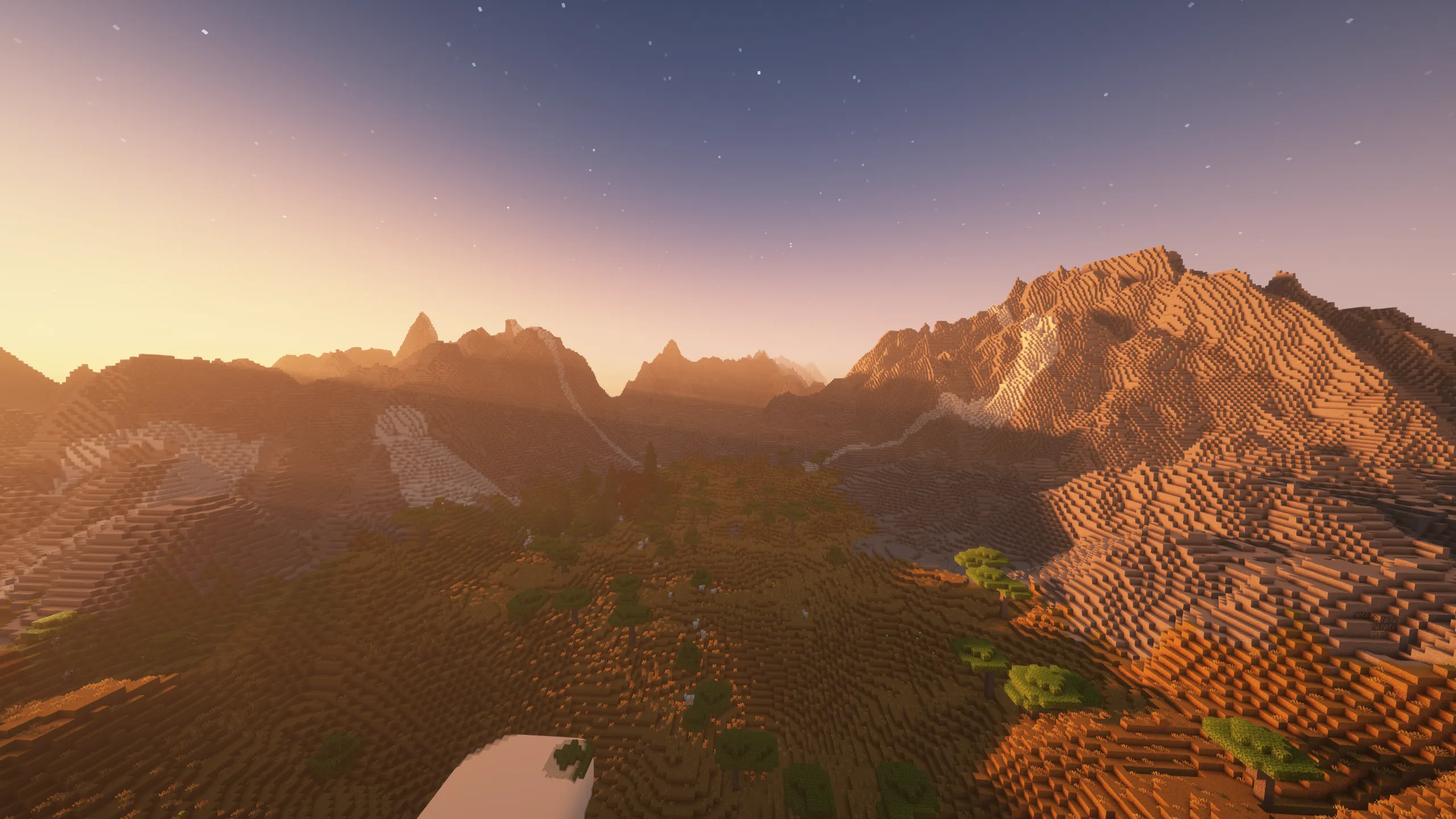
Installing OptiFine
To use OptiFine with your modpack, you must first extract the mod file before adding it to your installation.
- Download: Visit the OptiFine website and download the version matching your modpack.
- Extract: Ensure you have Java installed. Open the downloaded
OptiFine.jarfile with Java and select the Extract option. Save the resulting mod file to your desktop. - Install: Copy the extracted mod file from your desktop into your modpack’s
modsdirectory.
Locating Your Mods Folder
Follow the steps below based on your chosen launcher to find the correct directory:
CurseForge App (Click to expand)
- Open the CurseForge App and select your modpack.
- Click the three dots (…) next to the Play button.
- Select Open Folder.
- Open the
modsfolder and paste the OptiFine file there.
ATLauncher (Click to expand)
- Open ATLauncher and navigate to the Instances tab.
- Find your modpack and click the Open Folder button.
- Open the
modsfolder and paste the OptiFine file there.
Prism Launcher (Click to expand)
- Open Prism Launcher and select your modpack instance.
- Click the Folder button on the right-hand sidebar (or right-click the instance and select Folder).
- Navigate to the
.minecraftfolder, then open themodsfolder. - Paste the OptiFine file there.
If you need a more detailed walkthrough on adding mods, please refer to our Adding mods to a modpack guide.
